
instantiator.dev
I'm a senior tech lead, writing about tech, volunteers, public safety, and collective intelligence. This blog contains articles, tools, code and ideas.
- Presence (tool) (in dev)
- ListSky (tool) (in dev)
- The Epistolorean (service)
- Consensus Games (service) (in dev)
- JSON to Smart CSV (tool)
- Escape the Review (profile)
- In this house... (calendar)
- A chat with Lewis (call)
Free AI-assisted coding 1: Getting started
tutorialA short tutorial to help you set up a lightweight AI assisted-coding environment, with free tools. It’s a modest solution but, if you have a computer, you can get started for nothing.
Free tools
- Visual Studio Code
- OpenCode
- Python
I’ve picked these tools because they are free, widely used, and cross-platform. Together they give you a code editor, a terminal, and an AI coding assistant. You may have a preference for different products, and that’s ok. Most products will work together, so there’s no need to stick to the recipe here exactly.
I opted for Python1 as the primary language, and I’ve hinted at using the Streamlit framework. Python is popular amongst data scientists, and Streamlit offers simple ways to build a user interface. There are plenty of plugins and support for other languages and frameworks. In a future post, I’ll discuss how you might choose a language and framework to work with.
1. Visual Studio Code
Visual Studio Code is a free code editor and IDE2 from Microsoft. IDEs can manage whole projects, not just code files. They often have built in tools that can build, test, and highlight your code, and showing warnings and errors. Visual Studio Code has an extensive plug-in/extensions system with just about everything you might need.
Installation
- Visit: code.visualstudio.com
- Download the version for your computer
- Run the installer and follow the prompts
Useful extensions
To install an extension, click the Extensions icon in the sidebar (or press Ctrl + Shift + x / Cmd + Shift + x). Search for the extension you want, and install it with the “install” button.
| Extension | What it does |
|---|---|
| Python (Microsoft) | Highlighting, linting, and debugging for Python files |
Some optional extensions you may wish to install at a future date…
| Extension | What it does |
|---|---|
| Jupyter (Microsoft) | Runs Jupyter notebooks inside VS Code |
| GitLens | Adds information about Git repositories, so you can see who changed what and when |
Jupyter notebooks offer a nice way to prototype and run simple data processing pipelines.
Of these, I’d suggest installing the Python extension now, and return to the others (or explore the wider catalog of extensions) when you need them.
2. OpenCode
OpenCode is a free, open-source AI coding assistant that runs in your terminal. Really it’s a harness, and you can attach it to any LLM provider out there. This means you can use paid for, free, and even models running locally on your machine. It can help you write code, examine the code in your project, fix errors, etc.
It’s one of several different products that do this - and each major provider has their own. For instance, Anthropic provide Claude Code, and Google provide Gemini CLI.
OpenCode also comes with a Visual Studio integration.
Installation
There are several different ways3 to install OpenCode. For our purposes, I suggest installing it as a VS Code extension.
Follow the instructions at: https://opencode.ai/docs/ide/
To check it’s installed, open OpenCode inside VS Code:
- Press
Cmd+Shift+Esc, or - Press
Cmd+Shift+p(opens the palette), type and select “Open opencode”
💡 Get used to opening the palette in VS Code. It’s a very useful way to launch a lot of different tools.
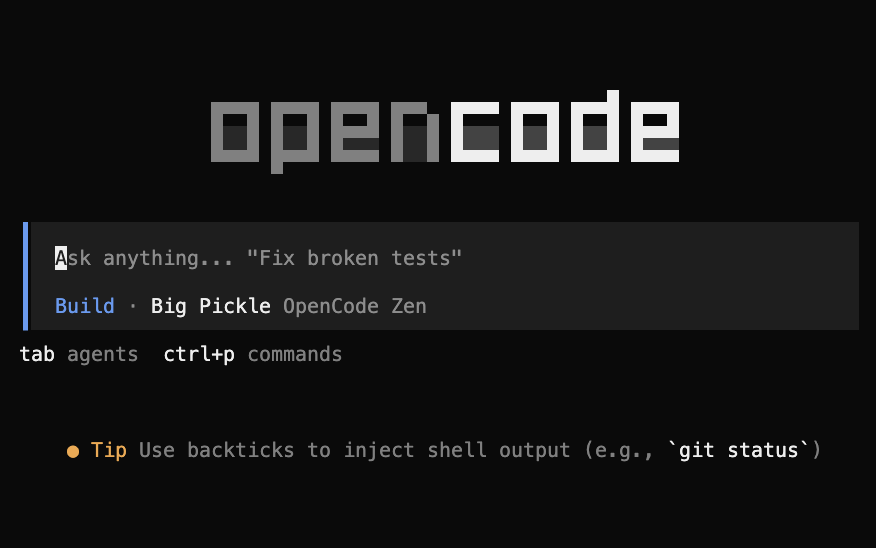
You should see the OpenCode interface. By default, it’s ready to use - with the (free) Big Pickle model provided by OpenCode Zen selected.
Picking a model
OpenCode can use different AI models. Some models are free. There are benefits and drawbacks to working with different providers and models. This is a fast-moving situation, but here are some general principles:
Free model providers often reserve the right to retrain their models using your code. This means you should be careful. If your code is private, or you need to include secrets or private keys in your code base, there’s a chance that will leak into the wider model. In those cases, I don’t recommend using it.
Free models are often constrained by usage. (Actually, so are paid models.) You’re likely to get a smaller quota from a free model.
Free models may not perform as well as paid models. Some, like Big Pickle, are easily good enough for getting started, though.
OpenCode Zen free models
OpenCode supports many providers, and comes with its own provider called OpenCode Zen. This has a curated selection models, tested and verified by the OpenCode team. Several models on Zen are free to use. These are the easiest way to get started.
The free models available through OpenCode Zen are:
| Model | Model ID | Context | Notes |
|---|---|---|---|
| Big Pickle | opencode/big-pickle |
200K | A model optimised for coding tasks. It’s free for a limited time while the team collects feedback. |
| DeepSeek V4 Flash Free | opencode/deepseek-v4-flash-free |
1M | A fast, long-context model from DeepSeek. It has a 1 million token context window with up to 384K output tokens. It’s free for a limited time. |
| MiMo-V2.5 Free | opencode/mimo-v2.5-free |
1M | A strong reasoning model from Xiaomi. It’s free for a limited time. |
| North Mini Code Free | opencode/north-mini-code-free |
256K | A code-focused model from Cohere. It’s free for a limited time. |
| Nemotron 3 Ultra Free | opencode/nemotron-3-ultra-free |
1M | A large model from NVIDIA. It’s free for trial use only. |
⚠️ For all of these models, be careful with sensitive or confidential information.
If your needs go beyond basic prototyping, you may wish to consider a paid provider4. In those cases, you’ll want to compare OpenCode Zen with the other available providers (Anthropic, Google, etc.)
Big Pickle is the default model. It is good for general-purpose coding and prototyping.
How to change the model
When OpenCode starts, run the /models command to see available models. Select one of the free models listed above. You can also set a default in your OpenCode config:
{
  "$schema": "https://opencode.ai/config.json",
  "model": "opencode/big-pickle"
}
💡 I recommend leaving it with Big Pickle to get started.
Free quotas and limits
The free models come with rate limits. The exact limits are not officially published and may change, but based on community reports they are roughly:
| Limit | Approximate value |
|---|---|
| Requests per day | ~100–200 |
| Requests per 5 hours | ~200 (for Big Pickle) |
| Token context | 200K (Big Pickle) up to 1M (DeepSeek, MiMo, Nemotron) |
You should be ok to do a few hours of prototyping and then return to continue later. OpenCode can warn you about quota, and after it’s exhausted it should tell you when you can pick up again. You can wait a few hours, switch to another free model, or add a payment to continue as you were.
Tokens
Tokens are the basic unit of communication to and from LLMs. Each token is a word, concept, or part of a word. Coding agents can use many tokens as they need to read whole files, search your project, run things and test the outputs of those runs, and keep hold of a good amount of conversation history.
For simplicity, quotas here are discussed in numbers of requests, rather than tokens. Your mileage may vary depending on how complex the tasks are you’re handing out.
If you want more power
If you have an API key from OpenAI, Anthropic, or Google, you can use it with OpenCode to access their most capable paid models. These may handle complex tasks much better, and paid tiers often do not use your data for model training. (I recommend checking rather than assuming.)
Summary
| Tool | What it is | Why you need it |
|---|---|---|
| VS Code | Code editor | Where you write and edit your code |
| OpenCode | AI coding assistant | Helps you write, understand, and debug code |
| A model (e.g. Big Pickle) | Reasoning and language | Used by OpenCode to perform tasks and answer questions |
| Python extension | VS Code plugin | Improves your experience working with Python |
Great - hopefully you’ve got VS Code and OpenCode working together. In the next tutorial, we’ll look at git and how to use it to work on your project safely, track your changes, and collaborate with others…
-
Python isn’t really my first choice language for anything - but personal tastes differ. Python is sensitive to indenting and whitespace and I find that frustrating. It’s also not a strongly-typed language, and that feels like a weakness. Type systems protect code from a whole class of mistakes. However, it has been widely adopted by the data science and AI communities - and there are some good libraries for this kind of work. ↩︎
-
Integrated Development Environment ↩︎
-
If you want to install other variants (OpenCode Desktop, OpenCode Terminal, etc.), see: https://opencode.ai/download ↩︎
-
Why not a local model? Whilst it’s pretty amazing that you can run a model on your own computer, these aren’t really ready for heavy-duty usage yet. Consumer laptops aren’t really built to do this. They can run all the software you currently use, but would need a chunk more memory and computing power to run powerful LLMs. Local models run slowly, and have a small context window (ie. they won’t be able to reason about much at a time - a bit like Miller’s Magic Number). ↩︎