
instantiator.dev
I'm a senior tech lead, writing about tech, volunteers, public safety, and collective intelligence. This blog contains articles, tools, code and ideas.
- Presence (tool) (in dev)
- ListSky (tool) (in dev)
- The Epistolorean (service)
- Consensus Games (service) (in dev)
- JSON to Smart CSV (tool)
- Escape the Review (profile)
- In this house... (calendar)
- A chat with Lewis (call)
Sky hub blues
articleThere’s a bug in the Sky Hub that stops you from changing a whole bunch of settings. It’s a genuine mistake that Sky won’t fix. Here are some workarounds to help you control your home network…
Sky Hub blues
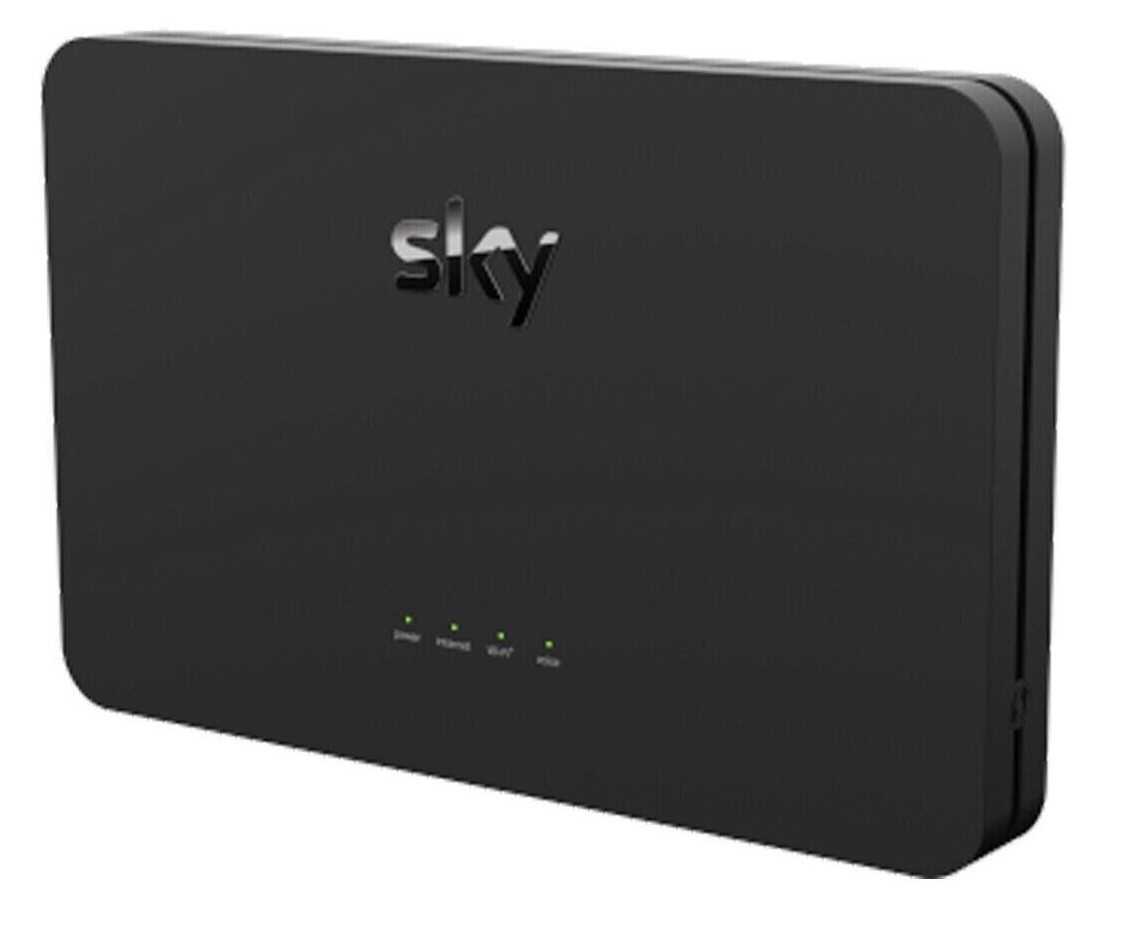
The SR203 Sky Hub has a problem. On the latest firmware1, a bug prevents you from from changing several key parts of the configuration.
I’m using DDNS (dynamic DNS) to remotely communicate with some services that I host at home. To do that, I need to be able to forward internet traffic that arrives at certain ports, and to give some of the devices on my home network (a couple of Raspberry Pis) fixed IP addresses. This is all possible but the Sky Hub’s interface has bugs that get in the way.
💀 It seems like this is a long-standing known issue, and Sky aren’t likely to fix it any time soon.
Sky’s SR203 Hub |
Some cartoon Gemini cooked up |
|---|---|
 |
 |
Work hard enough to defeat the Level 1 bot, and get through to a human, slightly less helpful than a Google search. Their special moves: 💥 conflicting advice! 💥 ask you to disconnect and tell them when you have done it! 💥 unnecessary upsell! 💥 escalate to a team who will tell you nothing is wrong!
— Lewis Westbury 💛💙🌱 (@instantiator.bsky.social) 2026-07-15T11:19:34.733Z
Can't quite believe this 20 year old piece of kit from the bottom of my cables box saved the day! USB-C to USB-A to Belkin gigabit USB 2.0 ethernet adapter (released in 2006), to ethernet to shonky Sky Hub. Magic! ✨
— Lewis Westbury 💛💙🌱 (@instantiator.bsky.social) 2026-07-27T22:58:01.690Z
The symptoms
When making changes to your network configuration in the hub: Instead of allowing you to alter and save certain values, the Hub reloads the page and shows a warning that says “your session has expired”. (The session hasn’t actually expired, and this always occurs.)
It’s worth noting that this issue really only occurs over wifi. It took a while to discover that, as it didn’t occur to me that the experience over an ethernet connection would be different. (I still can’t imagine why.)
Experimentally I’ve spotted problems with:
- Managing the wifi networks (changing SSID, splitting 2.4 and 5 GHz bands)
- Setting up port forwarding
- Reserving IP addresses
I’m sure there are other issues. It seems to relate to creating or modifying objects in the configuration.
Workarounds
So what can we do about it?
A. Use an ethernet cable
This was, surprisingly, the simplest solution (and the one that took me the longest to discover). A degree of searching led to the suggestion that perhaps this was something worth trying - but it felt like a last resort.
In the end, I dug out a USB-C to USB-A adapter, an old Belkin gigabit USB 2.0 ethernet adapter, and an old ethernet cable. Amazingly, it worked! Over a wired connection, the hub’s web interface stops giving false session timeouts, and allows you to modify the configuration.
- Turn off your wifi
- Connect an ethernet cable between your laptop and the hub (some devices have a port for it, others will need an adapter, as mine did)
- Allow a few seconds for your new connection to be established (on most modern operating systems, this will be automatic)
- Visit the hub at: http://192.168.0.1
Read on if you don’t have a laptop with an ethernet port, or if you don’t have access to the fiddly little ancient adapters I keep in a box ‘for a rainy day’…
B. Backup and restore
This is the software solution. It’s a bit more fiddly, but it’ll work over wifi. Here’s the detail:
You can backup your hub configuration through the web UI, and you can restore it from a backup. This solution involes editing the configuration and then re-uploading it.
This also works - and it’s less risky than it sounds. If your hub doesn’t recognise something in the configuration file it’ll either reject your upload (because it doesn’t think it’s valid), or it’ll simply ignore the change.
Sky Hub configuration files
Sky’s SR203 hub’s configuration files are in XML format, but they’re not well documented.
Although it has areas of compatiblity with the Broadband Forum TR-098 standard, the hub only loosely follows it. There’s no other publicly available documentation for the format of the configuration file, and it’s a proprietary product - so there’s not much incentive to do so.
There are XML elements in the TR-098 standard that look as if they might be usable to configure the hub - but they aren’t actually used2.
Inferred schema
In the absence of reliable documentation, I’ve inferred3 an XML schema using variations of my own configuration, which you can use to validate changes before you apply them.
Changing the hub configuration
Here’s the proecss for making an edit:
- Download the current configuration from the hub
- Make a copy, and work on the copy (so you always have a backup of the original)
- Edit the new working copy, to add what you want (a reservation, a port forward, etc.)
- Validate your modified XML before you upload
- Upload it back into the hub
- Allow several minutes for the hub to reboot and read the new configuration
- Review the hub’s web UI, look for your changes
- Download the configuration again, to see if your change was accepted
💡 That last step is important: If the hub doesn’t recognise a part of the configuration, it can silently ignore it. When it does that, it won’t appear in the download so you can spot things that didn’t work.
Some things to know:
- You can’t include XML comments. (eg.
<!-- comment -->) These will fail the upload. - The order of siblings matters. You must put elements in the same order that the hub expects to find them.
1. Download the current config
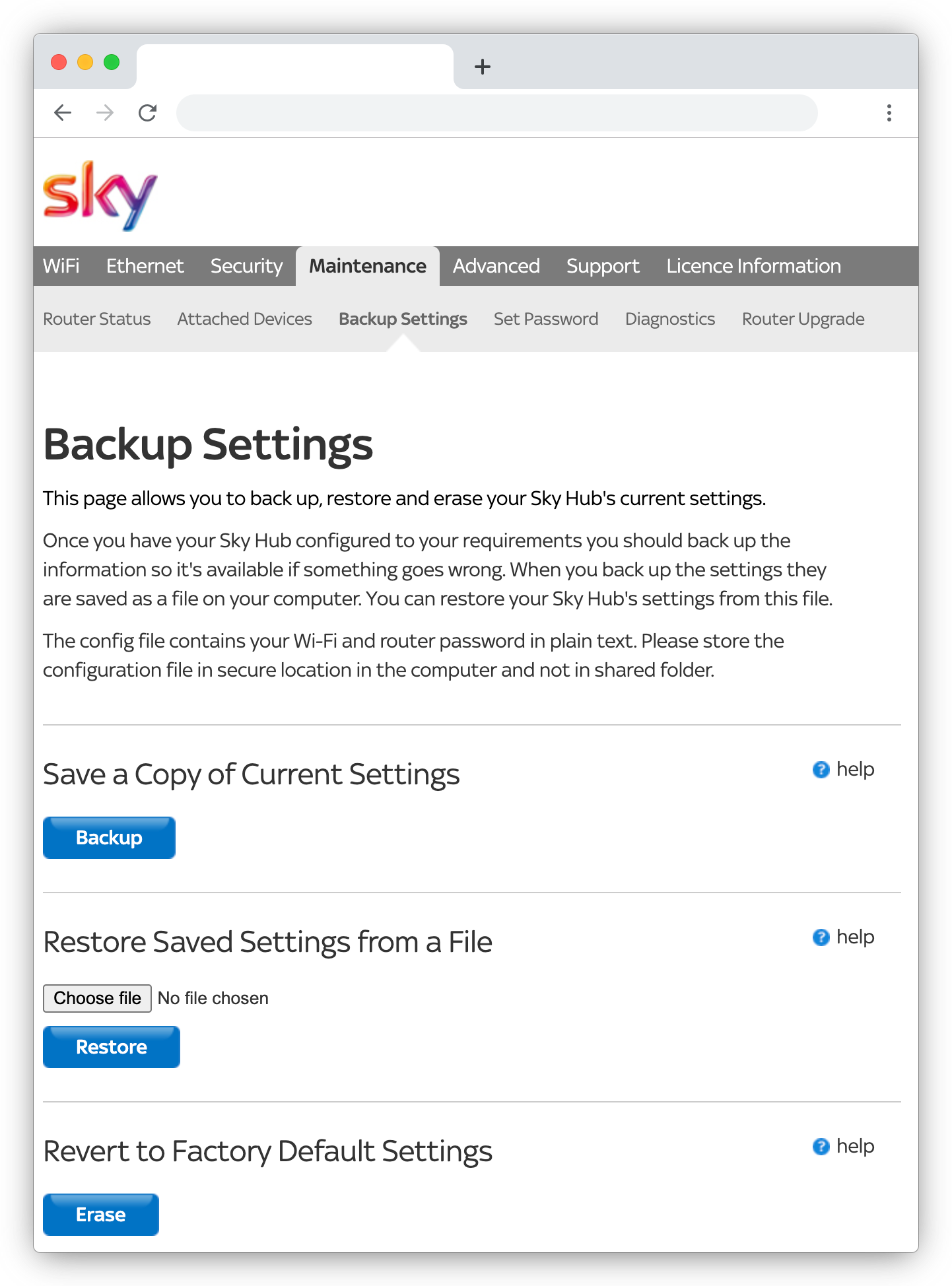
Your hub’s web interface has a way to download (backup) the current configuration:
| Steps | Screenshot |
|---|---|
|
Visit your hub’s Maintenance - Backup Settings section. This is usually at: http://192.168.0.1/sky_backup_settings.html You should see buttons to allow you to save a copy of the current settings, restore settings from a saved copy, and reset back to factory settings. Click the Backup button to download a copy of your configuration. |
|
3.1. Setting up port forwarding
Port forwards live in a flat, proprietary object called SKY_GENERIC_WAN_FIREWALL_EXCEPTION.
- It must be a direct child of
InternetGatewayDevice4 in the XML.
Find the existing list (which could be empty). It should end with a self-closing nextInstance placeholder:
<SKY_GENERIC_WAN_FIREWALL_EXCEPTION nextInstance="1"></SKY_GENERIC_WAN_FIREWALL_EXCEPTION>
Replace anything there with your new rule(s), followed by an updated placeholder:
<SKY_GENERIC_WAN_FIREWALL_EXCEPTION instance="1">
  <Enable>TRUE</Enable>
  <FilterName>my-web-server</FilterName>
  <Protocol>TCP</Protocol>
  <SourcePortStart>1</SourcePortStart>
  <SourcePortEnd>65535</SourcePortEnd>
  <DestinationPortStart>443</DestinationPortStart>
  <DestinationIPAddress>192.168.0.50</DestinationIPAddress>
  <BlockAction>allow_always</BlockAction>
</SKY_GENERIC_WAN_FIREWALL_EXCEPTION>
<SKY_GENERIC_WAN_FIREWALL_EXCEPTION nextInstance="2"></SKY_GENERIC_WAN_FIREWALL_EXCEPTION>
| Element | Notes |
|---|---|
FilterName |
This is just a label (shown in the web interface). |
SourcePortStart / SourcePortEnd |
These indicate the range of ports on the remote machine that are allowed to initiate a connection. (Leave as 1-65535, meaning: it doesn’t matter which port is used by the remote machine. This is normal.) |
DestinationPortStart |
This is the port being opened on your hub. |
DestinationIPAddress |
This is the IP address of the internal device the traffic gets sent to. |
Unlike most lists in this config format, there’s no
...NumberOfEntriescounter for this object — just the numberedinstance="N"entries and the trailingnextInstanceplaceholder.
- Add one block per service.
- Increment
instancefor each block. - Bump the final element’s
nextInstanceto the next unusedinstancenumber.
NB. There’s no separate field for the internal port, and there’s no support for translating one external port to a different internal port. External and internal ports are always the same number. The hub is effectively ’exposing’ an internal port on its external interface.
3.2. Reserving IP addresses
Port forwarding relies on being able to send internet traffic on to a known IP address, so it’s a good idea to give the device you’re forwarding to a fixed address.
Reservations live in an element called DHCPConditionalServingPool, which must be nested inside LANHostConfigManagement (itself inside LANDevice), and placed after the
existing IPInterface entries:
<LANHostConfigManagement>
  <DHCPServerEnable>TRUE</DHCPServerEnable>
  <IPInterfaceNumberOfEntries>1</IPInterfaceNumberOfEntries>
  <IPInterface instance="1">
    ...
  </IPInterface>
  <IPInterface nextInstance="2"></IPInterface>
Reservations go here:
  <DHCPConditionalServingPool instance="1">
    <Enable>TRUE</Enable>
    <Chaddr>aa:bb:cc:dd:ee:ff</Chaddr>
    <ReservedAddresses>192.168.0.50</ReservedAddresses>
    <DomainName>my-web-server</DomainName>
  </DHCPConditionalServingPool>
  <DHCPConditionalServingPool nextInstance="2"></DHCPConditionalServingPool>
</LANHostConfigManagement>
| Element | Notes |
|---|---|
Chaddr |
This is the device’s MAC address, lowercase, colon-separated. |
ReservedAddresses5 |
This is the IP to assign. |
DomainName |
This is just a label (shows as the device’s name in the UI). It doesn’t need to match the device’s real hostname. |
As with port forwards, there’s no
NumberOfEntriescounter. Each entry has aninstance="N"property, and a trailingnextInstanceplaceholder.
- Add one block per service.
- Increment
instancefor each block. - Bump the final element’s
nextInstanceto the next unusedinstancenumber.
4. Validate your XML
First, download the schema to the same folder as the config file you’re working on. I inferred a schema using trang, a mature tool, by James Clark, that can infer a schema from XML samples.
xmllint ships with Mac OS. (It’s a part of libxml2, and you don’t need to install anything.)
To check a config file against the donwloaded schema:
cd path/to/your/working/folder
xmllint --noout --schema sky-sr203-inferred.xsd your-config-file.conf
No output means your config file has validated against the schema. Any error printed by the tool will point to the line, and element, that doesn’t match6.
There’s also a Visual Studio Code extension you can use to see schema warnings while you edit a file:
Add a file association in your workspace
.vscode/settings.jsonto force it to use the schema for.conffiles:{ "xml.fileAssociations": [ { "systemId": "./sky-sr203-inferred.xsd", "pattern": "**/*.conf" } ] }(Restart Visual Studio Code after modifying the settings.)
5. Upload your new configuration
| Steps | Screenshot |
|---|---|
|
Visit your hub’s Maintenance - Backup Settings section again.
|
|
The hub will reboot, and you’ll spend a few minutes waiting while it loads the new configuration and your laptop reconnects.
Once reconnected, either the new configuration will have been accepted, or it will have been silently dropped.
8. Download and check the latest config
Visit your hub’s Maintenance - Backup Settings section one last time, and download one more copy of the configuration.
If all’s well, your new changes will be visible in the file. You should also be able to see those changes in the hub’s web interface (even if you still can’t edit them there).
If something wasn’t recognised (perhaps you made a typo or missed an instruction above), they’ll have been removed.
If that’s the case, check the XML you first prepared, fix any issues, and try again. If it’s still not working then, I’m afraid, we’ve reached the end of the road. I suggest asking a friend or colleague if they can help you connect to your hub by ethernet cable.
Good luck!
References
- Cannot change any setting on sky router
- Setting up Port Forward on Sky SR203 router
- Fixed IP Address (or sometimes called Reserve IP Address)
-
2026-07-29: The latest firmware version at time of writing is:
7.04.0207.R↩︎ -
Examples of unused XML elements:
WANIPConnection.PortMapping,LANHostConfigManagement.DHCPStaticAddress- both of which would have been very handy if they were in use! ↩︎ -
I used
trang, a tool by James Clark that can infer a schema from XML samples. It’s part of thejing-trangpackage (brew install jing-trang). ↩︎ -
Don’t nest it inside
WANDeviceorWANIPConnection(as the TR-098 standard would imply). ↩︎ -
NB. This is not called
Yiaddr, even though that’s what the TR-098/TR-181 standard suggests. This object is specific to Sky. ↩︎ -
This doesn’t actually the config is necessarily wrong, but it’s a strong hint. Remember, the schema is only inferred and to do that I used a few variants of my own config. It should be correct, but mistakes might slip in. ↩︎